How can we help?
Step-by-step guides for every feature in Smart Logbook Pro.
Getting Started
Create your account
- Download Smart Logbook Pro from the App Store.
- Open the app and tap Create Account.
- Enter your name, email, and a password, then tap Register.
- Check your email and tap the confirmation link to activate your account.
30-day free trial
Your account includes a full 30-day free trial — no credit card required at sign-up. All features are available from day one. At the end of the trial you'll be prompted to subscribe to continue logging flights.
Sign in
- Open the app and tap Sign In.
- Enter your email and password.
- Optionally enable Face ID / Touch ID for faster access (Settings → Profile).
Flight Logging
Log a new flight
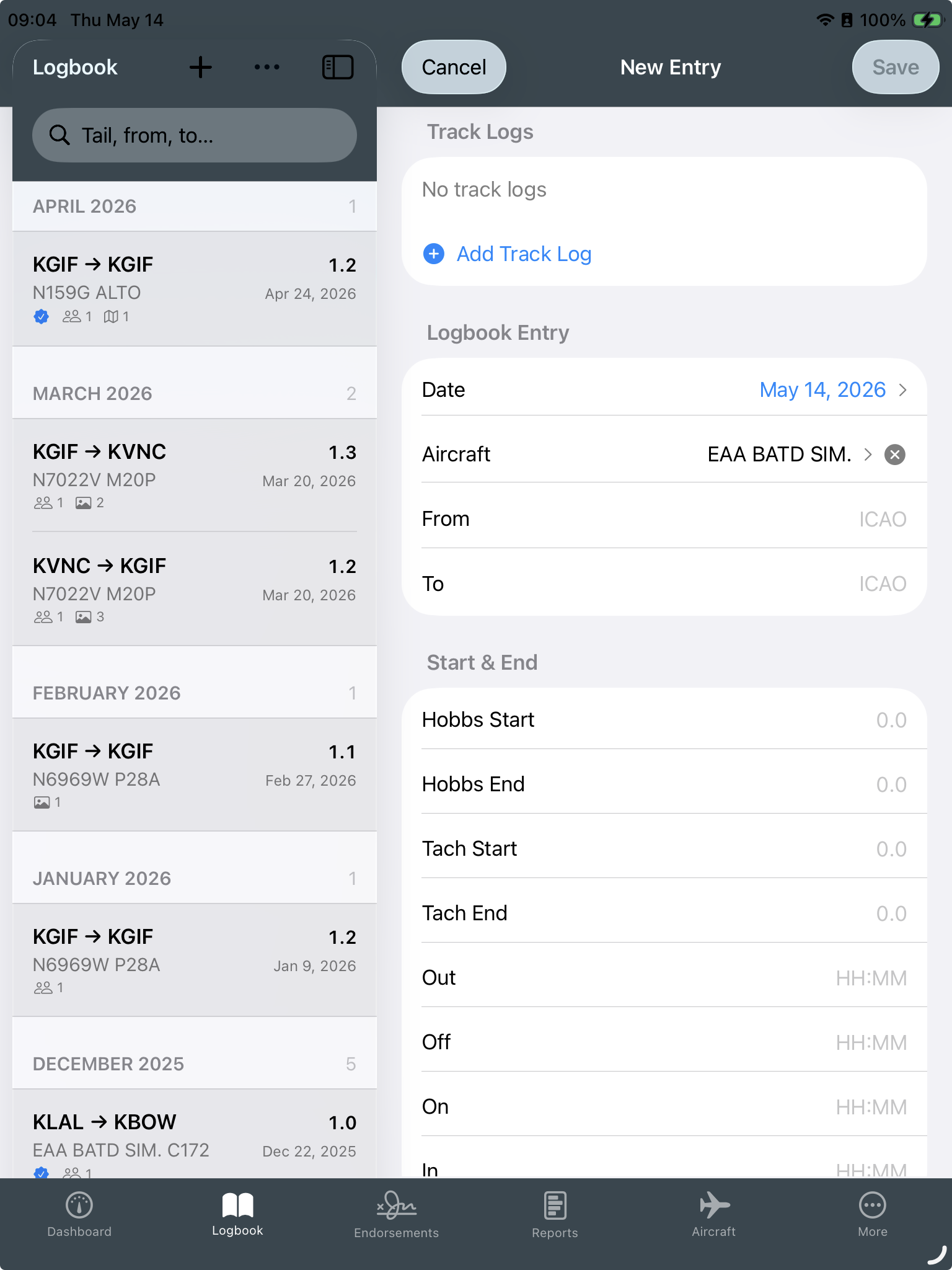
- From the Logbook tab, tap the + button.
- Fill in the date, aircraft, route, and departure/arrival times.
- The app calculates total time automatically from block times, or enter it manually.
- Add conditions: day/night landings, cross-country, actual/simulated IMC, PICUS, IFR, multipilot, examiner.
- Tap Save. The entry syncs to the cloud automatically when connected.
Edit or delete a flight
- In the Logbook tab, tap any flight entry to open it.
- Tap the Edit button (pencil icon) to modify any field.
- To delete, scroll to the bottom of the edit form and tap Delete Entry.
Autofill
Aircraft registration, instructor names, and frequently used routes autofill as you type. Enable Autofill Times in Settings to automatically populate flight times from block in/out entries.
Offline logging
Flights logged without an internet connection are stored locally and synced automatically the next time the app connects. You never lose an entry.
Currency & Dashboard
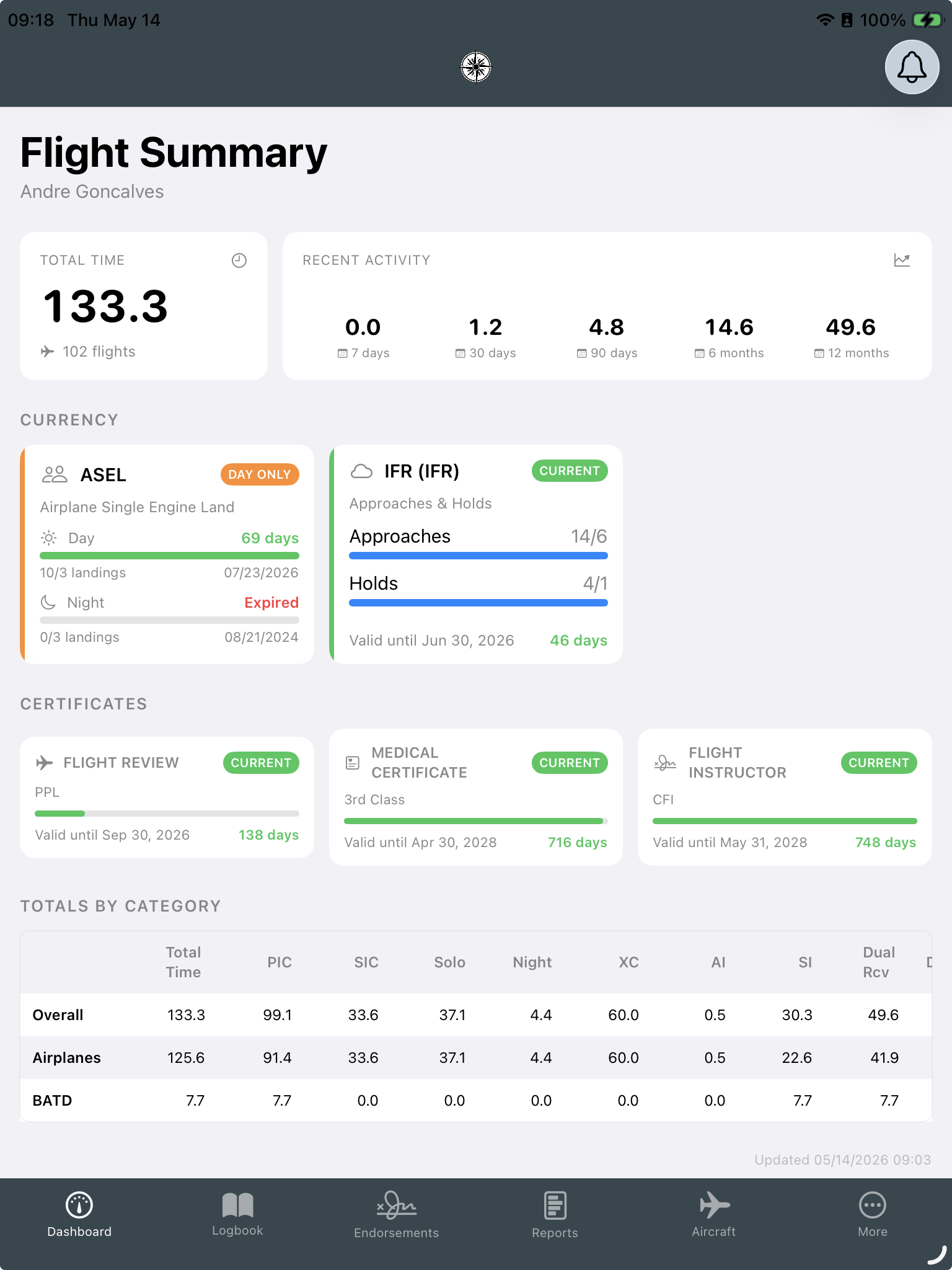
The Dashboard is your home screen. It shows your current flight currency, totals, and recent activity at a glance.
Currency status cards
Each card shows your status for a specific requirement — day currency, night currency, IFR currency, flight review, and medical. Tap any card to see the full detail: which flights count, when currency expires, and what you need to regain it.
Flight totals
The totals table breaks down your hours by category: total time, PIC, SIC, cross-country, night, actual IMC, simulated IMC, dual received, and more. Pull down to refresh.
Reports & PDF Export
Smart Logbook Pro generates professional PDF reports ready for FAA submissions, check rides, and personal records.
Generate a report
- Go to Logbook → Reports.
- Select the report type.
- Tap Generate PDF.
- Use the iOS share sheet to save, print, or email the PDF.
Available reports
Importing Data
Already have a logbook somewhere else? Import your entire flight history into Smart Logbook Pro in seconds. The following sources are supported:
How to import
- Export your logbook as a CSV file from your current app and save it to your iPhone (Files app).
- In Smart Logbook Pro, go to Logbook → Import.
- Select your source (ForeFlight, Garmin, LogTen, or Smart Logbook Pro template).
- Tap Choose File and select your CSV.
- Review the import preview showing the number of entries detected.
- Tap Import to confirm. Entries are added to your logbook immediately.
Importing from Garmin Pilot
Garmin Pilot exports your logbook as two separate CSV files. The entries file is required; the aircraft file is optional but improves aircraft make, model, and equipment matching.
- Open Garmin Pilot and go to Logbook → Export.
- Export your Logbook Entries — this saves a file named
fgLogbookEntries-*.csv. - (Optional) Export your Aircraft Types — this saves
fgLogbookAircraftTypes-*.csv. Including this file lets Smart Logbook Pro match your aircraft's make, model, and equipment details accurately. - On the import screen, upload
fgLogbookEntries-*.csvas the Logbook File. - If you exported aircraft types, upload
fgLogbookAircraftTypes-*.csvin the Aircraft Types File field that appears automatically. - Review the preview and click Import.
Importing from MyFlightbook
MyFlightbook exports your entire logbook as a single CSV file containing all flights and aircraft data.
- Go to myflightbook.com and sign in.
- Navigate to Logbook → Download.
- Select CSV format and download — the file will be named
MyFlightbook-Name-YYYY-MM-DD.csv. - On the import screen, upload this file and click Preview.
- Review the preview and click Import.
Smart Logbook Pro CSV template
If your current logbook app is not listed above, use our standard CSV template. Fill in your flights and import the file from Logbook → Import → Smart Logbook Pro template.
Download CSV TemplateEndorsements & CFI Tools
View and manage endorsements
- Go to Logbook → Endorsements.
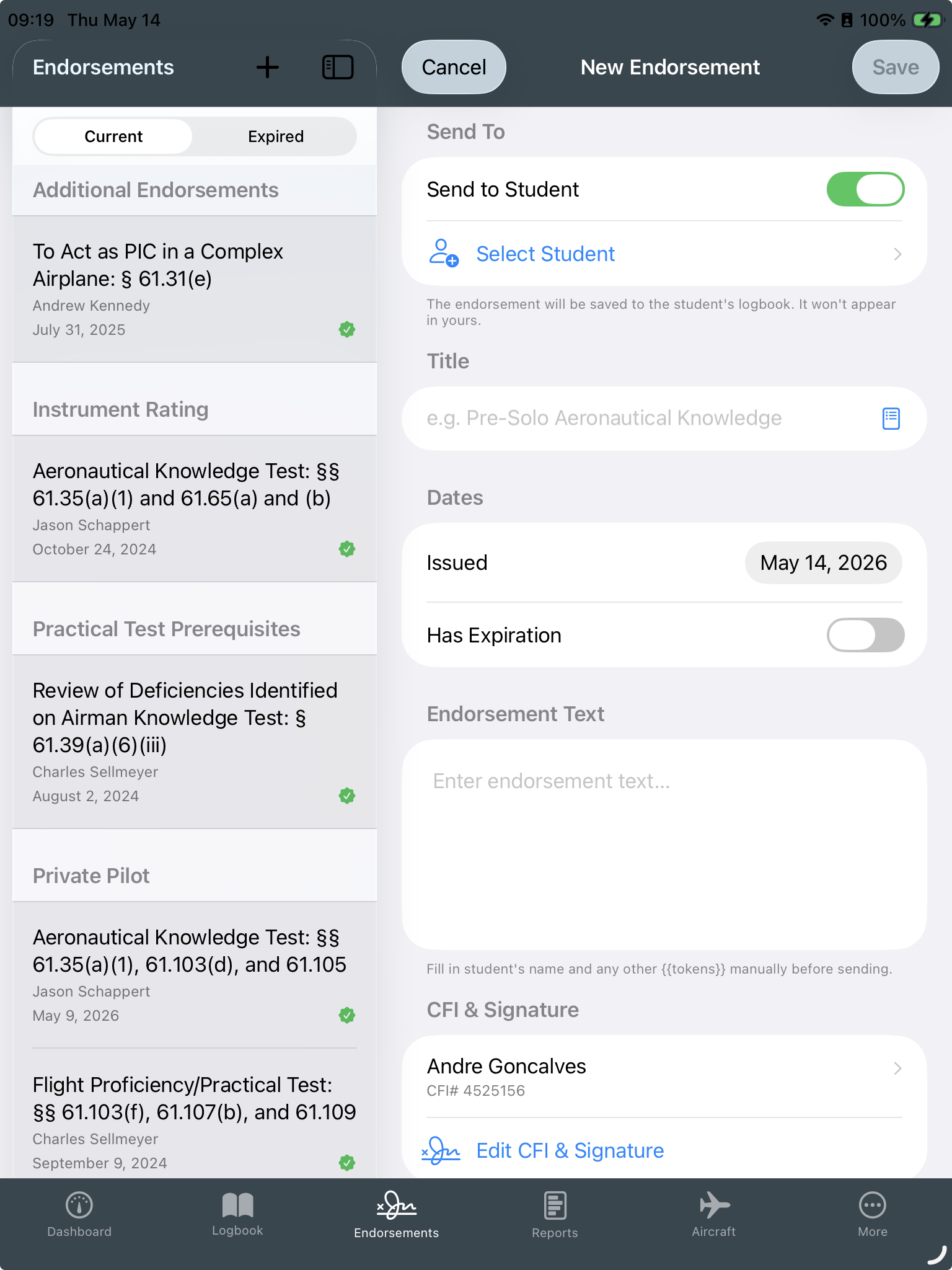
- Tap + to create a new endorsement.
- Select the endorsement type, fill in the details, and add your CFI's signature.
- Tap Save. Endorsements are stored offline-first and sync automatically.
For instructors: send an endorsement request
- Enable instructor tools: go to Profile → Settings and toggle Instructor Tools.
- Fill in your CFI certificate details in Instructor Profile — this autofills every endorsement.
- In Logbook → Requests, tap New Request.
- Enter the student's email. They receive a signing link — no Smart Logbook Pro account required.
- Once signed, the endorsement appears in both your records and the student's logbook.
Signature
Draw your signature directly on screen. It is stored securely and pre-loaded for all future endorsements. Tap the signature field at any time to update it.
Aircraft Management
Add an aircraft
- Go to Logbook → Aircraft and tap +.
- Enter the tail number, make, model, and category/class.
- Set it as your Default Aircraft to autofill it on every new log entry.
- Tap Save.
You can also add a new aircraft directly from the flight entry form — tap Add Aircraft next to the aircraft field without leaving the entry.
Pilot & Medical Certificates
Add a certificate
- Go to Profile → Certificates.
- Tap Add Certificate and select the type (Pilot or Medical).
- Enter the certificate details and issue/expiry dates.
- Tap Save. Certificates appear on your Dashboard currency cards.
Flight Review
Log your flight review in a normal logbook entry and mark the Flight Review toggle. The Dashboard currency card updates automatically.
Profile & Settings
Update your profile
- Go to Logbook → Profile.
- Tap Edit to update your name, email, or avatar photo.
- Tap Change Password to update your password.
Biometric login
- Go to Profile → Settings.
- Toggle Face ID / Touch ID to enable biometric login.
- Confirm with your device passcode when prompted.
Logbook settings
In Settings → Configure Fields, choose which fields appear on the flight entry form. In Settings → Autofill Times, configure automatic time calculation from block in/out.
Total time source
Choose whether total flight time is taken from block times, air time, or entered manually. Go to Settings → Total Time Source.
Subscription & Trial
Free trial
Every new account includes a 30-day free trial with full access to all features. No credit card is required to start.
Subscribe
- Go to Profile → Subscription.
- Select a plan and tap Subscribe.
- Complete payment via the App Store. Your subscription is managed by Apple.
Cancel or manage your subscription
- Open the Settings app on your iPhone.
- Tap your name → Subscriptions.
- Find Smart Logbook Pro and tap Cancel Subscription.
Account Deletion & Data Export
Export your data
- Go to Profile → Danger Zone.
- Tap Export My Data. You'll receive a CSV file with your full logbook.
Delete your account
- Go to Profile → Danger Zone.
- Tap Delete Account.
- Read the warning and type your password to confirm.
- Tap Delete Permanently.
Still need help?
Send us a message and we'll get back to you.
Digital aviation record-keeping built by a pilot, for pilots.
© 2026 AGKG Enterprise LLC. All rights reserved.